
A reliable PDF editor is essential for modern workflows and helps professionals manage reports, contracts, and academic documents. The right PDF tool saves time, reduces manual tasks, and simplifies document organization while allowing fast updates across multiple devices. Choosing the most suitable editor can feel confusing because features, prices, and performance vary significantly between available options.
This guide presents several efficient PDF platforms with their unique features to help you choose the best. Read this guide to the end to discover the best tool for your daily work and boost your productivity.
Part 1. Top 4 PDF Editors That Make Work Smarter
Digital document management can become challenging without the right tool. Let’s explore the best PDF editors with the ability to edit and secure your files without switching between multiple apps.
1. UPDF
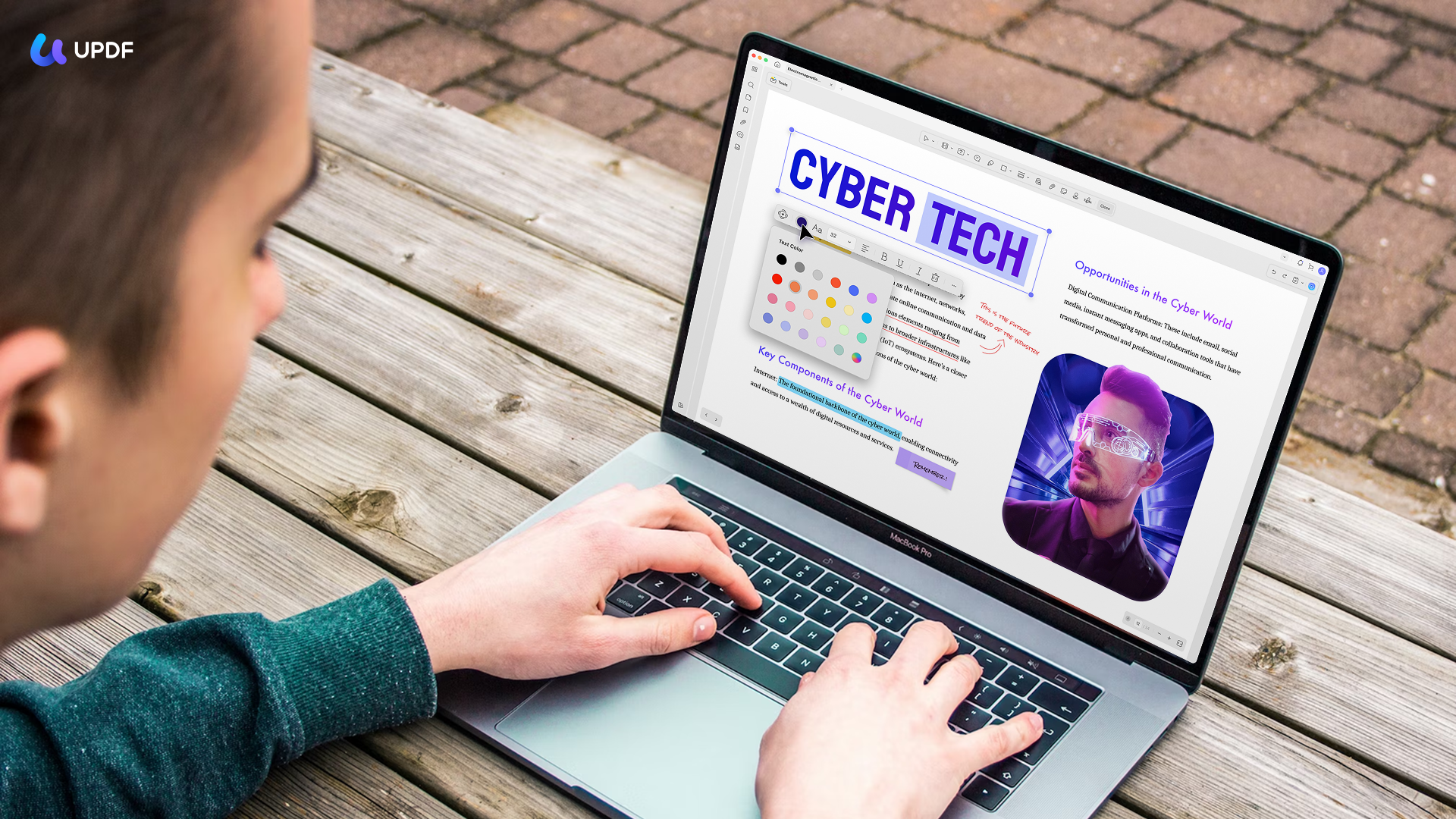
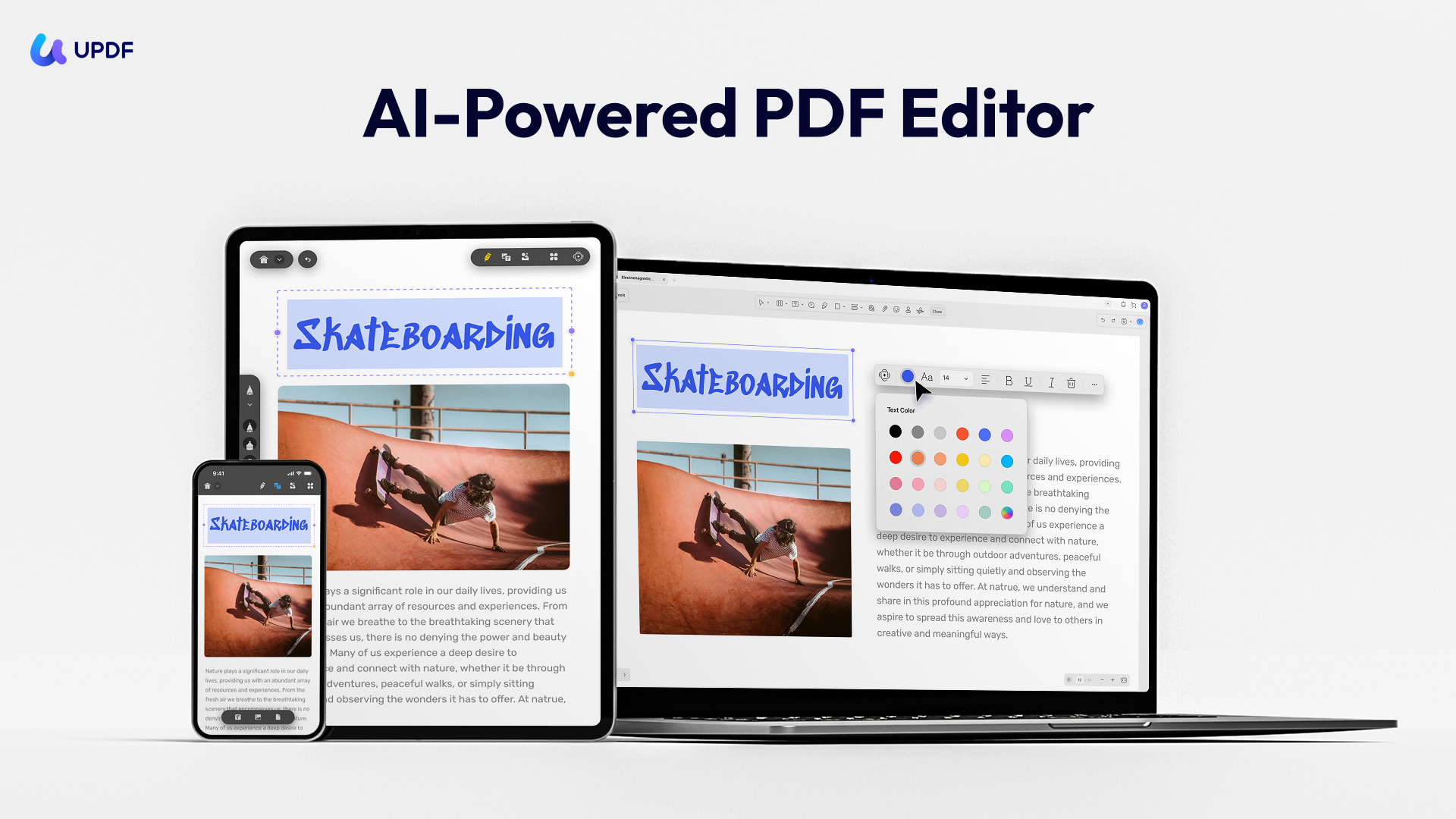
This PDF editor provides a comprehensive solution for managing all types of PDF files. UPDF enables you to extract images and annotate documents without the need to use multiple applications. The platform also provides AI tools powered by GPT-5 and DeepSeek (R1) that allow users to summarize and translate PDF content within the application.
Additionally, UPDF AI helps users find important points, generate research summaries, and extract data from academic papers. It also allows users to merge and reorganize PDF pages for document handling tasks.
Key Features
- OCR PDFs: You can convert scanned PDFs into editable documents with accurate language recognition and layout preservation.
- Edit PDF: Enables users to make edits in the text in PDFs to change fonts and alignment without laying out.
- Convert PDFs: Turn PDFs into Word, Excel, PowerPoint, images, and text while retaining original formatting and structure.
- AI Assistant: The smart AI assistant can help with PDF summarizing/translation, mind map generation, PDF conversion, image analyzing, etc.
- Fill and Sign: Users can fill PDF forms and add both electronic and digital signatures to their PDFs.
- Batch Process: It can batch combine, batch create, batch print, batch bates numbering, batch OCR, batch compress, batch watermark, batch insert, batch encrypt PDFs.
- Other Features: Read PDF, convert PDF to other formats, create PDF from blank pages/Word/Excel/PPT, merge & split PDFs, and more.
- Wide Compatibility: It is compatible with iOS, Android, Windows, and macOS. Users can use it on these four platforms with one account.
Ratings
G2 Rating: 4.5/5
Pros
- Lifetime subscription saves money by providing permanent access without recurring fees.
- Batch processing saves time for users handling large document collections.
- Works on Windows, Mac, iOS, and Android with one account.
- Users can try it for free.
Cons
- Users will need to upgrade to premium version to save the edited documents.
2. Adobe Acrobat
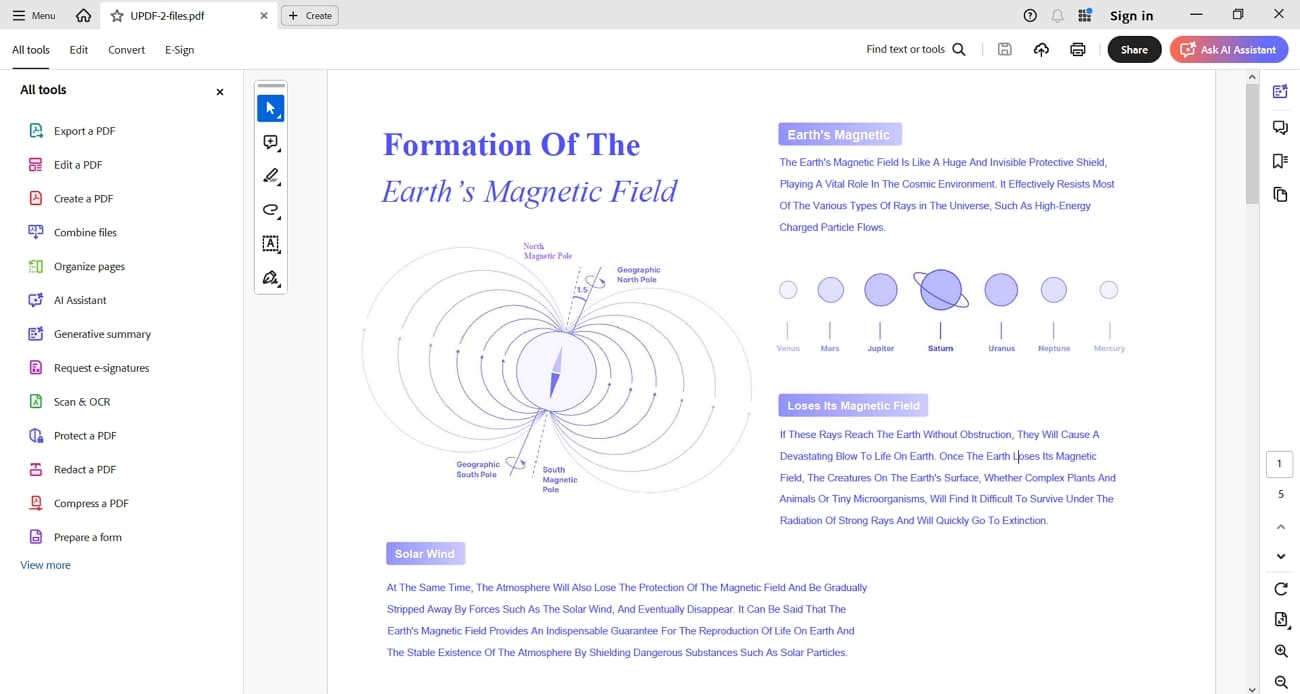
It is an advanced PDF editor used for creating and editing digital documents. Adobe Acrobat combines classic PDF tools with advanced AI features to mobilize daily workflows. Users can generate polished PDFs from files, scans, or web content in seconds. AI-driven insights help extract key information from long documents and complex reports quickly.
Other than that, integrated collaboration tools support commenting, reviewing, and tracking document activity across teams and devices. It offers built-in e-signature tools to manage approvals while keeping sensitive content secure and compliant.
Key Feature
- AI-Powered PDF Spaces: Turn files and links into interactive workspaces to chat with documents and gather insights.
- AI Assistants and Templates: You can use custom AI assistants with templates to create presentations from PDFs.
- Advanced Compare and Protect: Detect changes between versions and set permissions to control copying and editing.
Ratings
G2 Rating: 4.5/5
Pros
- Integrates tightly with Adobe Creative Cloud, ideal for media-rich PDF projects.
- Strong security controls help meet legal and financial compliance requirements.
Cons
- Many advanced AI tools feel unnecessary for simple PDF tasks.
- Complex features and menus can slow everyday workflows for newcomers.
3. Foxit PDF Editor
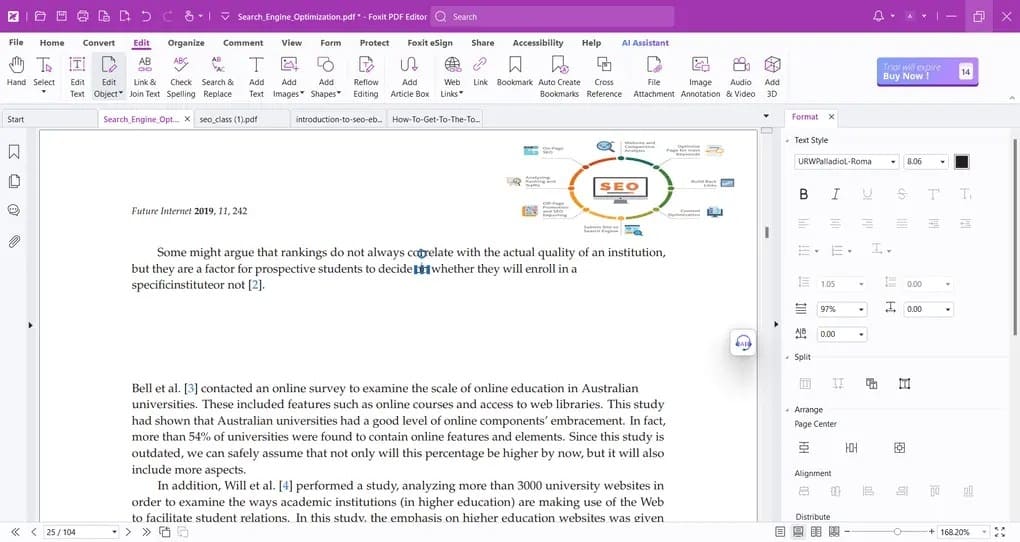
This PDF editor is focused on speed, security, and reliable performance in demanding professional environments. You can scan documents using OCR to transform scans into editable documents, which allows easier electronic interactions. Foxit PDF Editor also allows secure sharing with redaction and password protection.
Moreover, users benefit from team collaboration with shared reviews, comments, and version control across devices. Foxit PDF Editor is equipped with these capabilities and is applicable in both daily office tasks and more sophisticated tasks related to documents.
Ratings
G2 Rating: 4.6/5
Key Features
- Organize PDFs: Users can preview multiple PDFs, drag pages between them, reorder pages, and quickly combine everything into one file.
- Integrates with CRMs: Allows you to connect Salesforce and Jira from PDFs to send updates and trigger tasks.
- Redaction and Compliance: AI finds sensitive information so you can redact and keep documents aligned with privacy rules.
Pros
- Ribbon-style interface feels familiar to Office users and speeds learning.
- Side-by-side viewing options help spot document differences accurately during reviews.
Cons
- eSign often requires a separate bundle or add-on purchase.
- Enterprise options steepen learning for small non-technical teams.
4. Preview
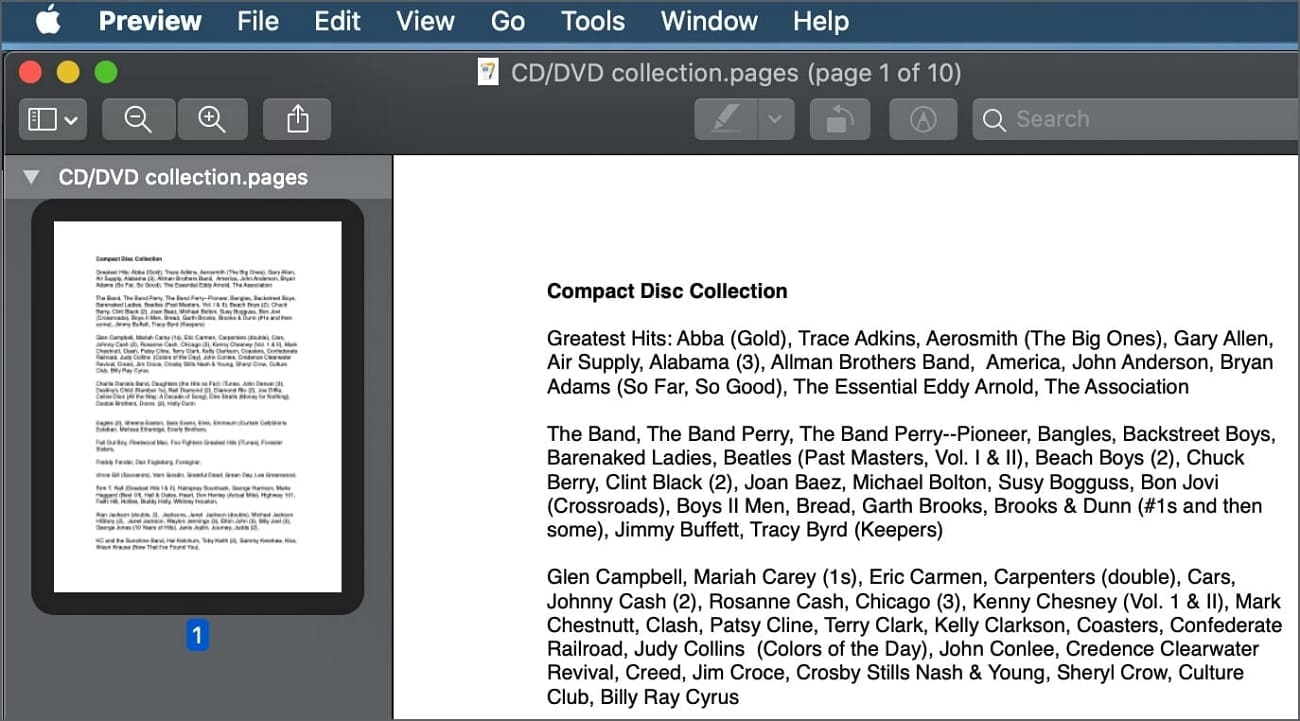
This PDF viewer and lightweight editor is built into macOS, designed for quick everyday document handling. It opens PDFs instantly from Finder, Mail, and browsers to keep reading and basic editing in one place. You can highlight important text, add comments, and draw shapes to mark up documents.
Unlike traditional PDF editor tools, Preview lets you fill forms and place simple signatures to help with routine paperwork. Users can rearrange, delete, and combine pages from multiple PDFs using the thumbnail sidebar.
Key Features
- View and Arrange Pages: Users can show thumbnails, drag pages to new positions, delete extras, and assemble a single PDF.
- Markup and Notes: Lets you highlight text, add sticky notes, draw shapes, and underline sections for clearer study and review.
- Form Filling and Signatures: It detects fields, supports typed entries, and allows saved signatures to be quickly applied to forms.
Ratings
G2 Rating: N/A
Pros
- Opens most PDFs automatically, so switching between apps is rarely necessary.
- Simple layout keeps tools visible without overwhelming casual or occasional document users.
Cons
- Cannot change existing PDF text, only layers new elements on top.
- Limited to macOS, so workflows break when switching to non-Apple devices.
Conclusion
In summary, the right PDF editor improves accuracy and speed in managing reports, contracts, and academic documents. Thus, this guide discusses the best PDF editors, and their special features are described to enable the professional to select the most suitable one. For those who require powerful editing, annotation, and AI-assisted document management, UPDF provides a complete solution that simplifies tasks and reduces mistakes.
-
NEWSLETTER
 Subscribe for our daily news

Most Popular